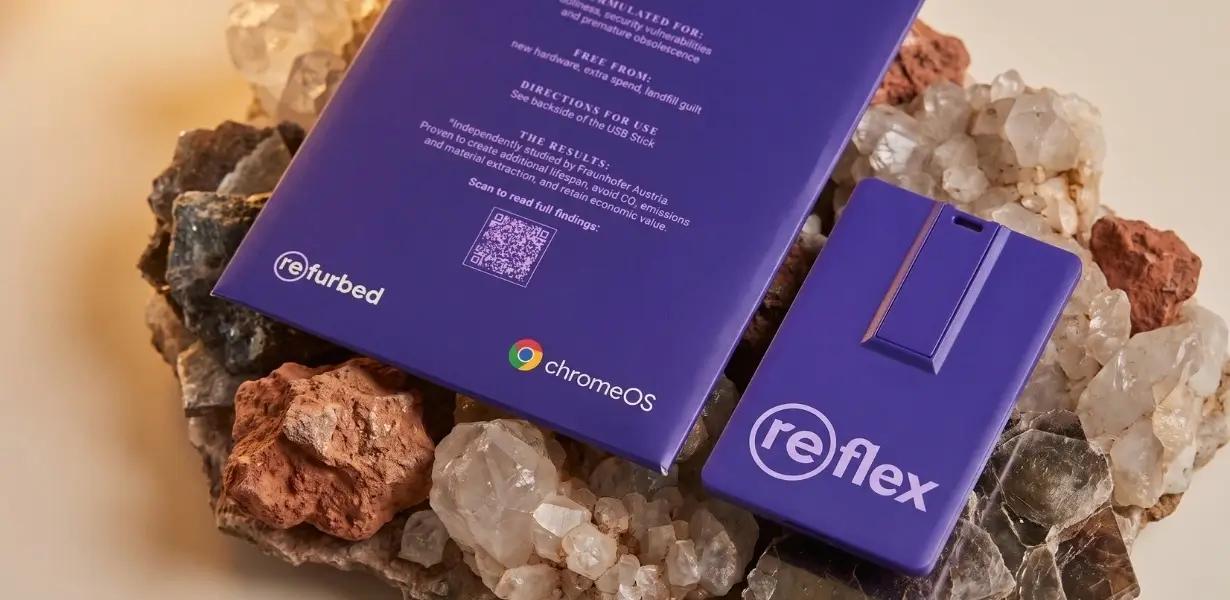
Glow up. Don't throw out.
Google x refurbed | Introducing (re)flex: The Anti-Aging Stick for Europe's Forgotten Windows 10 Laptops
Google and refurbed's Laptop Anti-aging Formula
An anti-aging boost for your laptop? Think retinol, but make it USB. Microsoft’s extended security updates for home users of Windows 10 end on 12 October 2027. That’s why refurbed and Google have teamed up on (re)flex: an anti-aging stick with ChromeOS Flex as its active ingredient, giving compatible laptops a fresh start. Apply via USB. Keep the glow. Skip the throw.
Is your laptop eligible? Check it here 👇
How to keep using your Windows 10 laptop with ChromeOS Flex
Here's how it works
1. Check whether your laptop is supported
Find your laptop’s model on Google’s ChromeOS Flex certified models list.
2. Get your USB stick
Already have the (re)flex stick? You’re ready to continue. If you haven’t, get it on refurbed. ChromeOS Flex is already loaded onto it.
3. Save your important files
Copy any photos, documents and other files you want to keep to an external drive or online storage, such as Google Drive or OneDrive. Installing ChromeOS Flex will delete everything stored on your laptop, including Windows.
4. Turn off your laptop and plug in the stick
Shut down your laptop completely, then insert the USB stick.
5. Start your laptop from the stick
Turn it on and immediately press your laptop’s boot key again and again, or hold it on a Surface or a Mac (see the list in the FAQ below). This opens a menu where you can choose what the laptop starts from. Select the USB stick.
6. Try ChromeOS Flex first
On the welcome screen, select “Get started”, then “Try it first.” This lets you test it without deleting your files. Check your Wi-Fi, sound, keyboard and the websites or online tools you use.
7. Install when you’re ready
If everything works for you, sign out and select “Install ChromeOS Flex.” Follow the instructions on screen and confirm only after you’ve saved your files elsewhere.
8. Remove the stick and sign in
When installation is complete and you’re asked to do so, remove the USB stick. Follow the setup instructions and sign in with your Google account.
41 million laptops. Too much life left to throw away.
The “Forgotten Computers Index”
A software deadline shouldn’t decide when a working laptop becomes waste. Research by Fraunhofer Austria, commissioned by refurbed, estimates that around 41 million of Europe’s 74 million Windows 10 devices don’t meet Windows 11 requirements.
Giving these devices just one more year of use could avoid approximately:
- 1,172 tonnes of electronic waste
- 320,000 tonnes of CO₂ emissions
That’s the potential behind keeping what works. Together with Google, we’re helping owners of compatible laptops take that next step with ChromeOS Flex.
Behind the glow-up: Why Google is partnering with refurbed
Want to know more about our partnership with Google? Watch our podcast to explore the idea behind (re)flex—and why giving existing laptops a second life matters.
Guests: Kilian Kaminski (Co-Founder, refurbed) & Ted Briggs (Lead, Sustainability Strategy, Google)
To watch this video please accept cookies
Manage cookie settingsGood questions. Clear answers.
Everything you need before, during and after the switch, in one place.
Will (re)flex work on my laptop?
Check Google’s certified models list. ChromeOS Flex needs:
- an Intel or AMD 64-bit processor
- at least 4 GB RAM
- at least 16 GB storage
Other models may run, but features are not guaranteed. Intel or AMD processors and graphics from 2012 or earlier, and Nvidia graphics from 2014 or earlier, are unlikely to work.
Why can’t my laptop get Windows 11?
Windows 11 needs a TPM 2.0 security chip, Secure Boot and a recent enough processor. Many home laptops miss one of them: Fraunhofer Austria estimates that about half of private Windows 10 PCs in the EU can’t upgrade.
Do I have to switch before October 2027?
Not yet. Home users on Windows 10 version 22H2 get free extended security updates with a Microsoft account until 12 October 2027. After that, newly found security holes stay open, and (re)flex keeps your laptop protected.
Can I try it without deleting my files?
Yes. Choose “Try it first”: ChromeOS Flex runs from the stick and leaves your drive and Windows untouched. The trial is slower than an installed system, and what you save in it isn’t kept after installing. Only installing erases the internal drive, so save your files elsewhere first.
Can I still use my Windows apps?
No. ChromeOS Flex replaces Windows, so Windows programs won’t run on it, and neither do Android apps from Google Play. You get web apps for browsing, email, documents and streaming instead, so check that your essential apps fit before switching.
Is the software free?
Yes. ChromeOS Flex is a free operating system from Google for existing PCs and Macs. The (re)flex stick comes with it already loaded, and you only pay €3 for shipping.
How long will my laptop get updates?
Once installed, ChromeOS Flex updates itself automatically. Each model on Google’s certified list has an end-of-support year, and updates stop on 31 December of that year.
Which key starts my laptop from the stick?
Turn the laptop off completely and plug in the stick. Press the power button, then immediately press the boot key again and again (on a Surface or a Mac, follow its own line below):
- Dell, Lenovo: F12
- HP: F9
- Acer: F2
- Asus: Del
- Toshiba: F2 or F12
- Microsoft Surface: hold the volume-down button, press and release the power button, and let go when spinning dots appear under the logo
- Mac: hold the Option key
- Other brands: try Esc, Enter or F1 to F12
In the menu that opens, choose the USB stick: look for its brand name or size. If the BIOS or UEFI settings open instead, set the stick as the first boot device, then save and restart.
What if the laptop doesn’t start from the stick?
Make sure it was fully off, not asleep, and try another USB port. In the BIOS or UEFI settings, check that USB boot is switched on and the stick comes first in the boot order. If the stick appears twice, choose the entry that starts with “UEFI:”. A black screen or a blinking cursor usually means trying another port, or that your model isn’t certified.
What happens when the installation finishes?
The laptop turns itself off. Remove the stick, switch the laptop on and sign in with your Google account.
Can I keep Windows as well?
No. ChromeOS Flex doesn’t run side by side with Windows: installing it replaces Windows. To use both for a while, keep running the trial from the stick.
Can I go back to Windows later?
Yes, by reinstalling Windows with Microsoft’s or your laptop maker’s installation media. That erases ChromeOS Flex, so back up your files first.

Sign up for our newsletter for the first time and save 15€!
Never miss an offer again.
Information about the use of personal data can be found in our Privacy policy.
Get the refurbed app
For iOS and Android



Confirm sign-up
Click the link in our confirmation e-mail to receive your voucher. It will be applicable to purchases from 200€.
- © Refurbed Marketplace GmbH
- Accessibility
- T&C
- Privacy Policy
- Imprint
- Legal Notices
- European Data Act
- Cookie Policy